

Lesson 1: Working with the Dreamweaver Interface
Basic Project Folder Structure:
Many of the projects we work with during the semester will follow a common folder structure. See below for example.
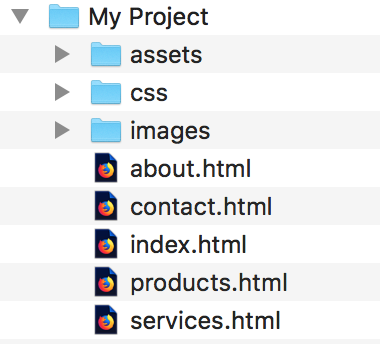
Assets – Holds working multimedia files, word docs with copy, etc…
CSS – Holds CSS files associated with the project
Images – Holds all image files referenced from your HTML pages
HTML Files – all HTML files should be at the root level of the project folder
The Dreamweaver Interface:
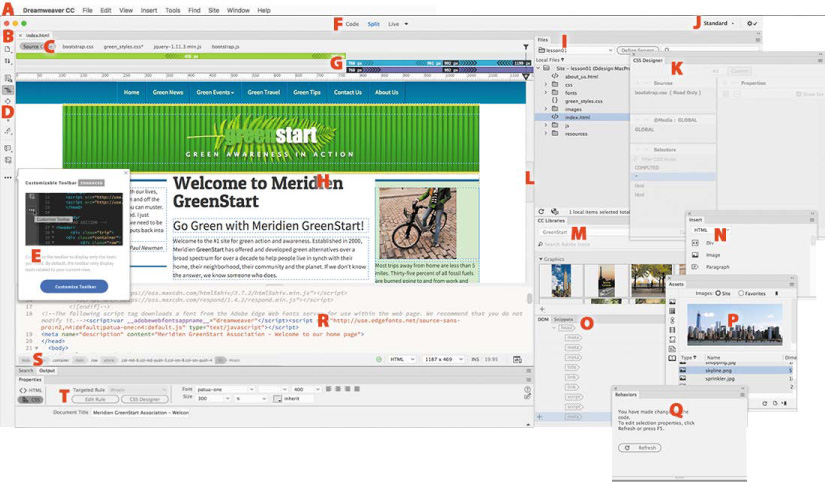
- Menu bar
- Document tab
- Related files interface
- Coding toolbar
- New Features
- Document toolbar
- Visual Media Query (VMQ) interface
- Live/Design views
- Files panel
- Workspace menu
- CSS Designer
- Scrubber
- CC Libraries panel
- Insert panel
- DOM panel
- Assets panel
- Behaviors panel
- Code view
- Tag selectors
- Property inspector
Changing Your Interface Preferences:
- Windows: Edit > Preferences
- Mac: Dreamweaver CC > Preferences
- Preferences Dialog will appear
- Select Interface Category
- App Theme – choose color
- Code Theme – Select code theme
Working with Toolbars:
Show the Document Toolbar:
- Go to Windows in the Menu Bar
- Select Toolbars > Document
Show the Standard Toolbar:
- Go to Windows in the Menu Bar
- Select Toolbars > Standard
Working with Files:
Creating new files:|
- Go to File > New Document
- The New Document Dialog box will appear
- Select the document you wish to create
Saving Files:
- Save changes to existing Files: File > Save
- Save a new file or save an existing file as a new file: File > Save As
Changing Your Views:
- Click code to see only code
- Click Split to see Code/Design
- Click Design/Live to see WYSIWIG full screen
Modifying Split View Windows:
- Go to View in the Menu Bar
- Select Split > Split Vertically (shows code on left/design on right)
Live Source Code:
Live Source code will show you the rendered code as it would appear in a browser
- Place document into Live View
- Click the live source code button at the top left of the document tab window.
Working with Panels:
- Go to Windows in Menu Bar
- Select Panels you would like to work with:
- Files, Insert, CSS Designer, DOM, Properties